
Video projector
PRODUCT OVERVIEW

HEADPHONE JACK OR
HEADPHONES WITH JACK PLUG
HDMI port
ON/OFF
FAN
POWER PORT
USB INPUT
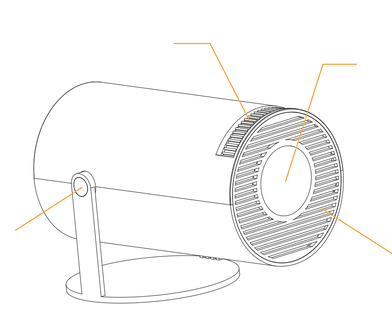
FOCUS WHEEL
LENS
ROTATION AXIS
AERATION
THE REMOTE CONTROL
Batteries not included

Open the battery compartment.
Insert the batteries (AAA type) respecting the indicated polarity (+/-).
Close the battery compartment.
ON/OFF
MIRACAST
NAVIGATION
BACK
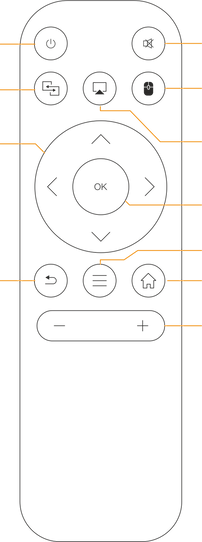
SWITCH TO
MOUSE CONTROL
CONFIRM
MENU
BACK TO HOME
VOLUME
FIRST
REMOVE THE PROTECTIVE FILM FROM THE LENS

THE CONNECTION
Connect the power cable (supplied) on one side to the power socket on your projector and on the other side to your wall outlet.
(Plug the power cord into a grounded outlet or a power strip)
Don't plug too many devices into the same power strip.
POWER ON/OFF
SWITCH ON THE PROJECTOR
Once the projector is plugged in, press and hold the on/off button for 2 seconds. Then wait for the interface to load.
TO TURN OFF THE PROJECTOR, PRESS THE ON/OFF BUTTON AGAIN FOR 2 SECONDS.

NETWORK SETTINGS
TO ENJOY ALL THE APPLICATIONS AND STREAMING SERVICES PROVIDED WITH THE PROJECTOR YOU MUST CONNECT TO THE WIFI NETWORK.
WIFI SETTINGS
- GO TO SETTINGS (NAVIGATION BUTTON ON THE REMOTE CONTROL)
- CHOOSE WIFI
- TURN WIFI ON
- YOU WILL THEN SEE THE LIST OF AVAILABLE NETWORKS
- CHOOSE YOURS
- ENTER YOUR WIFI PASSWORD
- PRESS THE OK BUTTON
- ONCE THESE OPERATIONS ARE COMPLETED YOU WILL BE ABLE TO WATCH NETFLIX-YOUTUBLE OR DOWNLOAD OTHER APPLICATIONS
BLUETOOTH CONNECTION
WITH BLUETOOTH CONNECTION YOU CAN PAIR DIFFERENT DEVICES, SUCH AS A WIRELESS MOUSE OR KEYBOARD, AND OF COURSE A SPEAKER OR SOUNDBAR FOR A MORE IMMERSIVE EXPERIENCE
BLUETOOTH SETTINGS
- GO TO SETTINGS (NAVIGATION BUTTON ON THE REMOTE CONTROL)
- CHOOSE BLUETOOTH
- TURN BLUETOOTH ON
- YOU WILL THEN SEE THE LIST OF DEVICES READY TO BE PAIRED
- CHOOSE YOURS
- PRESS THE OK BUTTON
- YOUR DEVICE IS CONNECTED VIA BLUETOOTH (The sound from your speaker or headphones is controlled by the remote control)
HDMI CONNECTION
CONNECT A PLAYBACK DEVICE (FOR EXAMPLE A BLU-RAY PLAYER, GAME CONSOLE, CAMCORDER, DIGITAL CAMERA OR PC) TO THE PROJECTOR VIA AN HDMI CONNECTION.
Thanks to this connection, images are projected onto the screen and sound is played through the projector. Using an HDMI cable,
CONNECT THE HDMI CABLE (NOT SUPPLIED) TO THE HDMI PORT ON YOUR PROJECTOR AND THE OTHER END TO THE OUTLET ON YOUR TV BOX OR COMPUTER
IMPORTANT: On some TV boxes with two HDMI ports, you must select the "Output" or "Outsource" port.
GO TO THE HOME MENU, SELECT SIGNAL, THEN CHOOSE HDMI.
If the image does not appear on the screen, manually select the HDMI input. Go to Settings, then Input Source – HDMI.
INTERFACE MANAGEMENT
